Obtaining Credentials
To start using the Checkout API, follow these steps:
If you already have a Checkout Classic integration and want to move it to Checkout Modern, see Migrating from Checkout Classic.
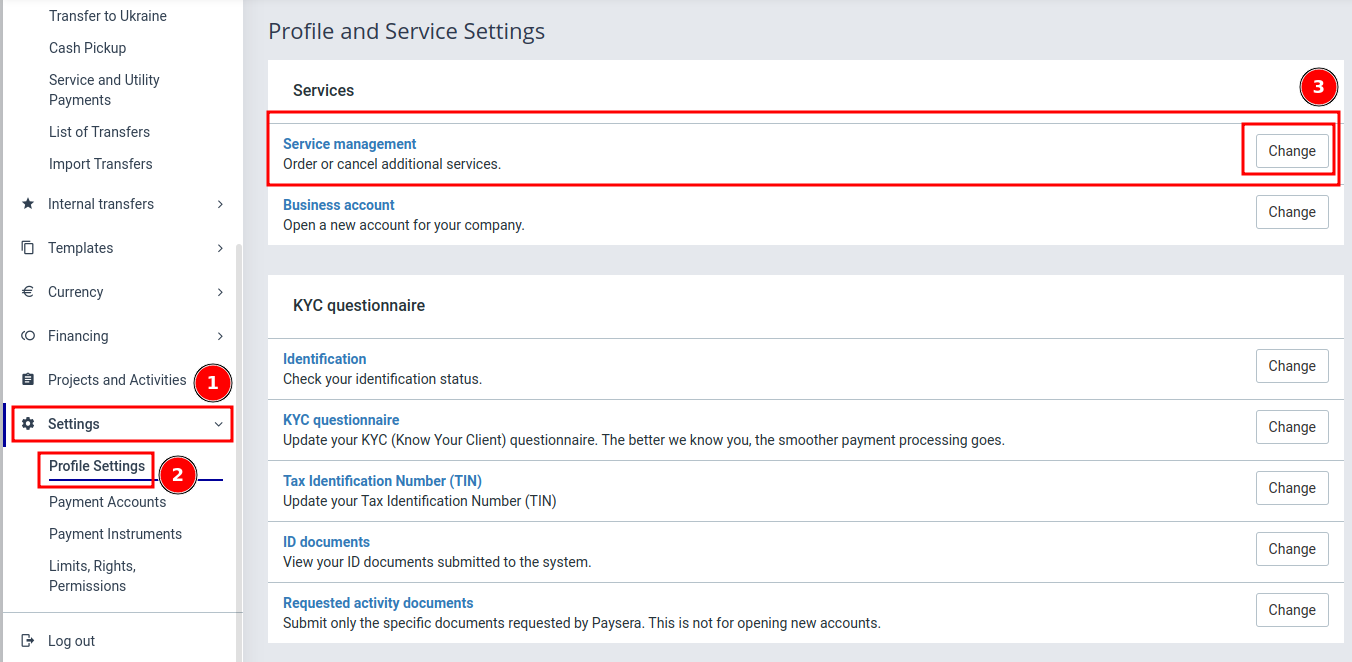
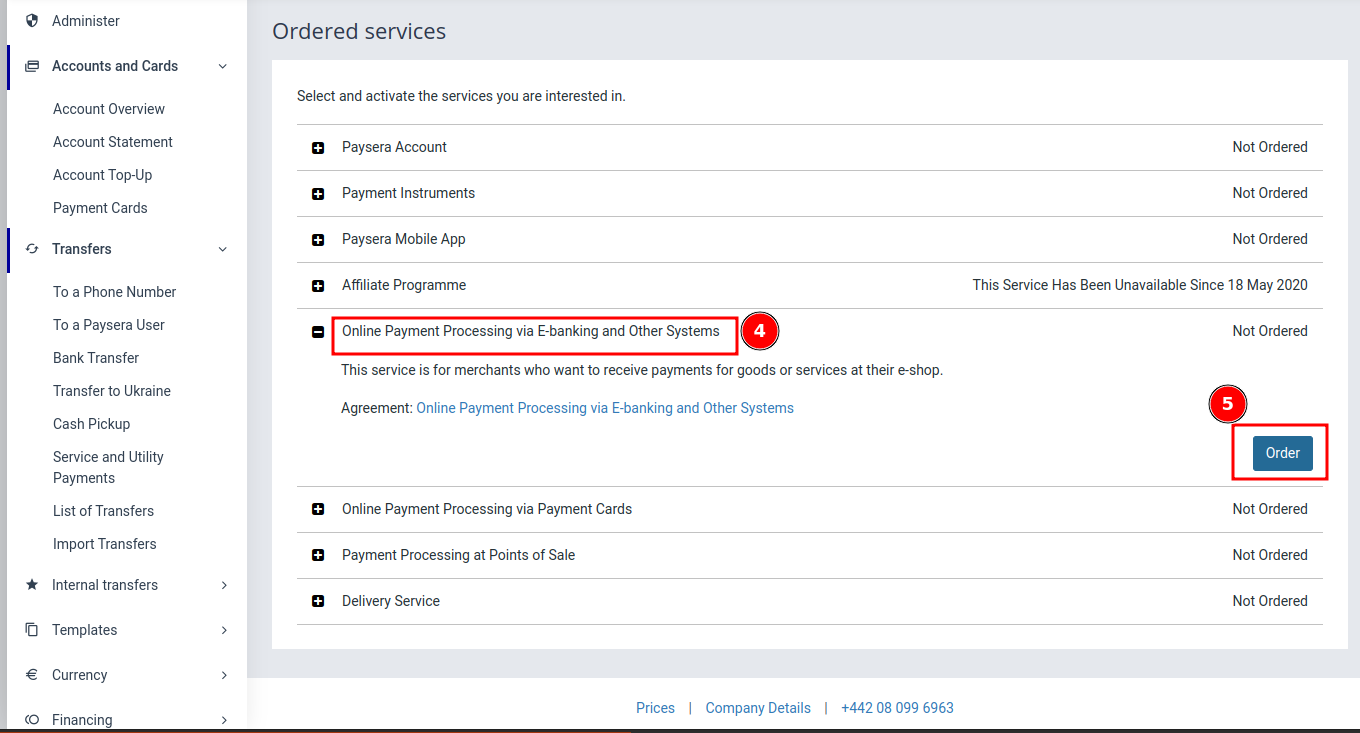
1. Order Payment Service
You need to order "Online Payment Processing via E-banking and Other Systems" in your account settings. This service must be activated before you can process payments through the Checkout API.
If you are interested in payment collection with credit cards, you should separately order "Online payment collection via payment cards" service, fill in the order form, and send it to application@paysera.com in addition to the e-banking service.
2. Create Your Project
Create a project in your Paysera account. You can find this option in the "Projects and Activities" section of your account.
During project creation, you will need to provide several points of information about your service and its policies, including details about your business, the services you offer, and relevant terms and conditions.
After submitting the request, you will be able to view and modify your project settings. Test payments will be available at this stage, allowing you to test your integration before going live.

3. Verify Your Domain
You were asked to provide your domain during project creation. Now you need to verify your ownership of that domain.
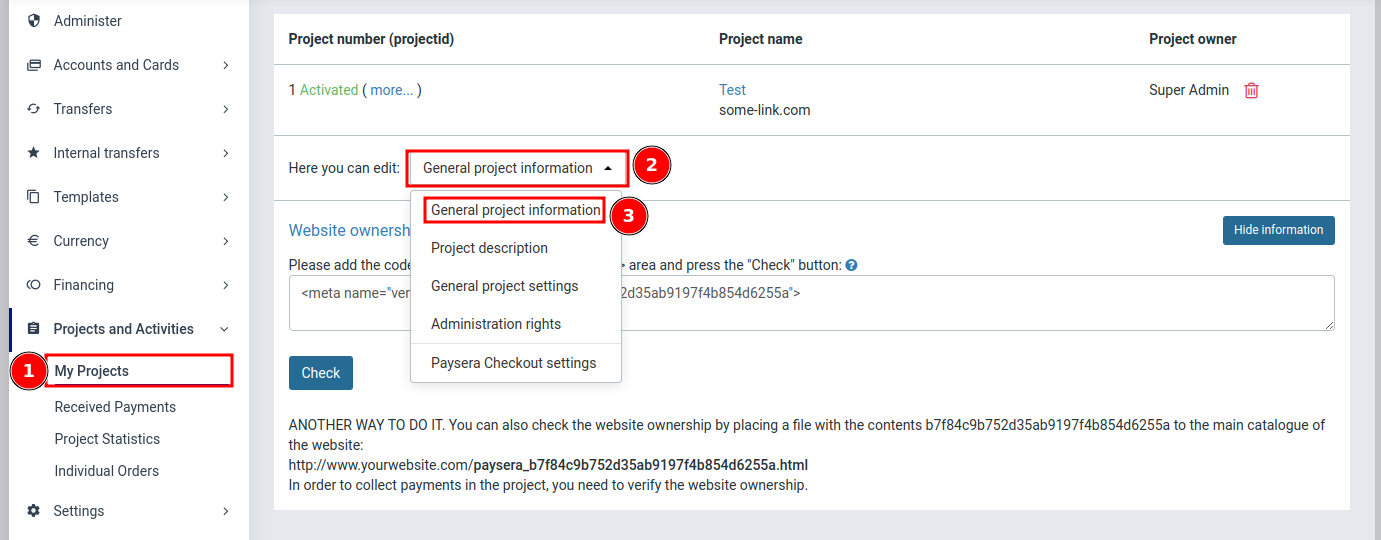
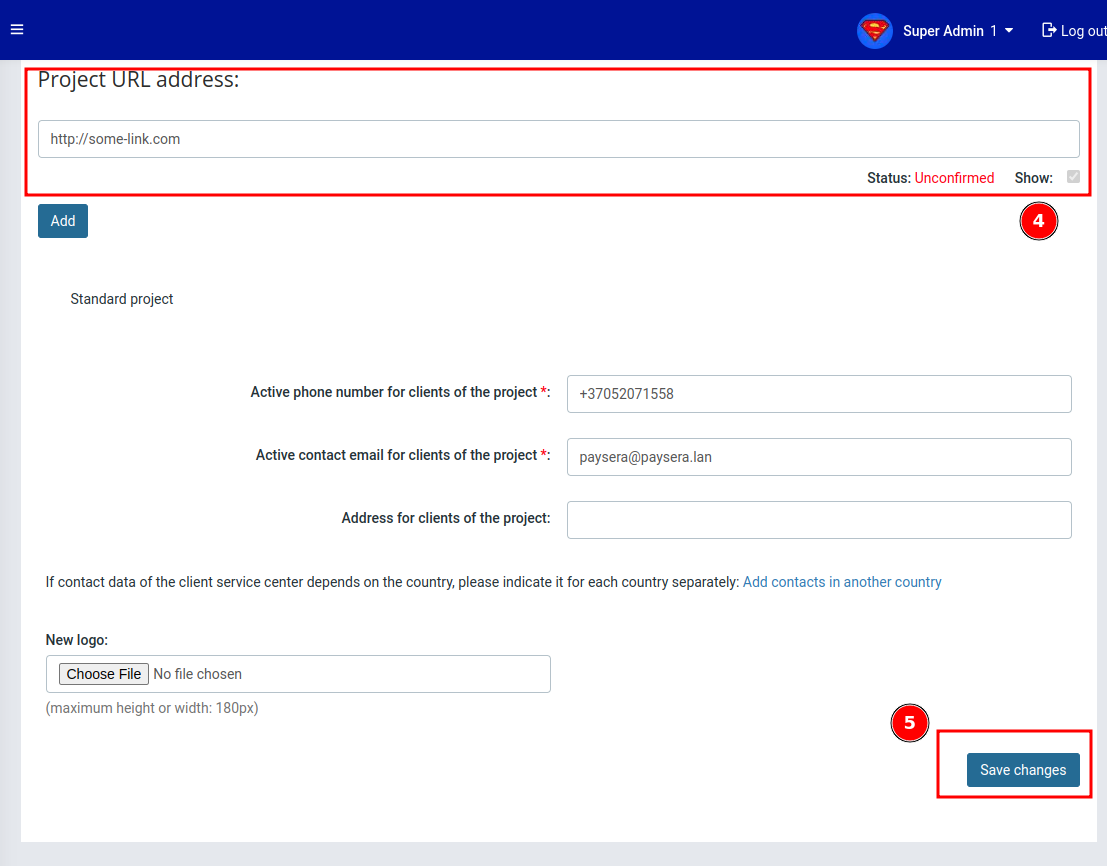
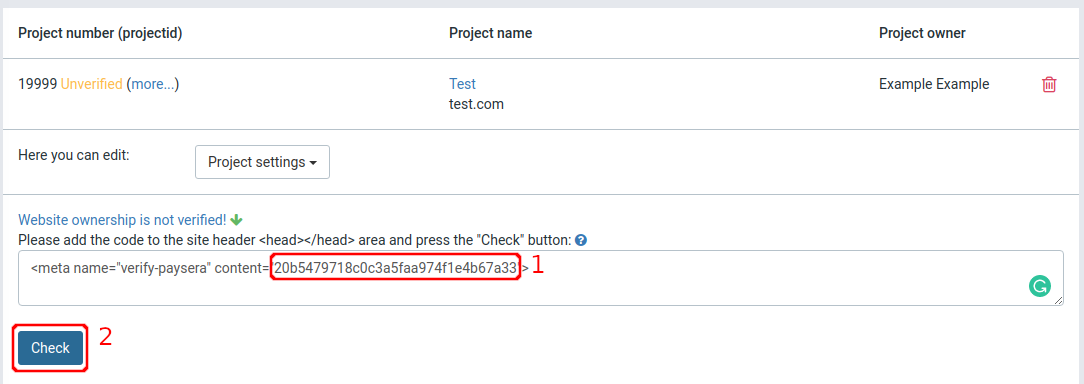
You will be provided with an HTML meta element that looks something like this:
<meta name="verify-paysera" content="12345678910abcdefgh">
Add this element to your website's index page. It doesn't need to render as a visible element - having it as text in an empty body is sufficient. This verification step is used to confirm your ownership of the domain.
After updating your domain page to include the element, return to your project settings and click on the "Check" button.
If everything is okay, you will notice a green indication that the domain is verified.
Troubleshooting Domain Verification:
If the domain does not get verified, try the following solutions:
- Make sure that your domain is publicly accessible
- Try to visually confirm it by yourself by inspecting your website content
- Replace your website content temporarily with a blank page including only the mentioned element
If the verification check continues to fail, you can contact Paysera Technical support for a manual check. Don't forget to include your Project ID in the email.
Email: tech_support@paysera.com
4. Submit Your Project for Verification
Click to submit your project for verification.
This verification process can take a few days. During this time, our support team might reach out to you asking for clarification or additional information.
Important: Only verified projects can make real payments. Test payments will continue to be available during the verification process.
5. Get Your Credentials
You need to collect two pieces of information for API integration:
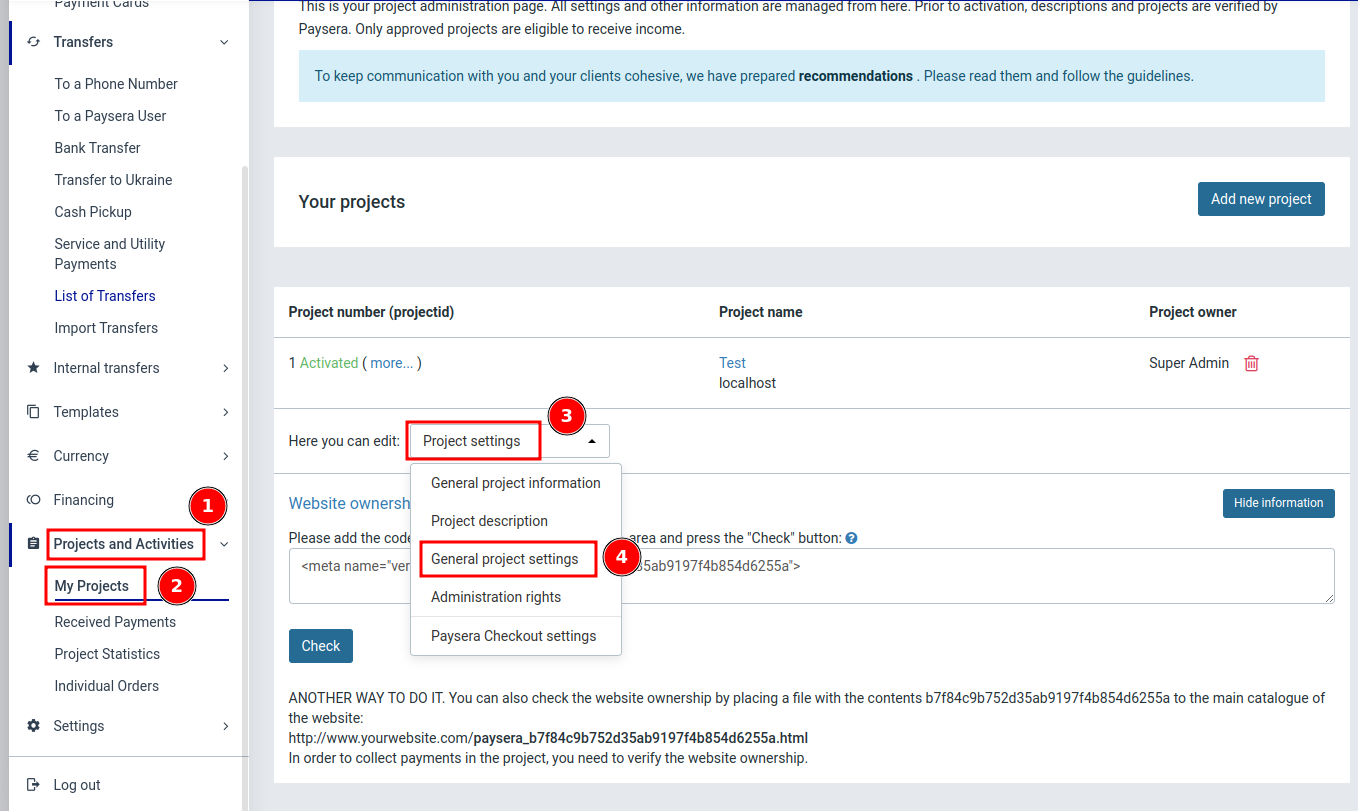
- Project ID - The ID listed next to your project
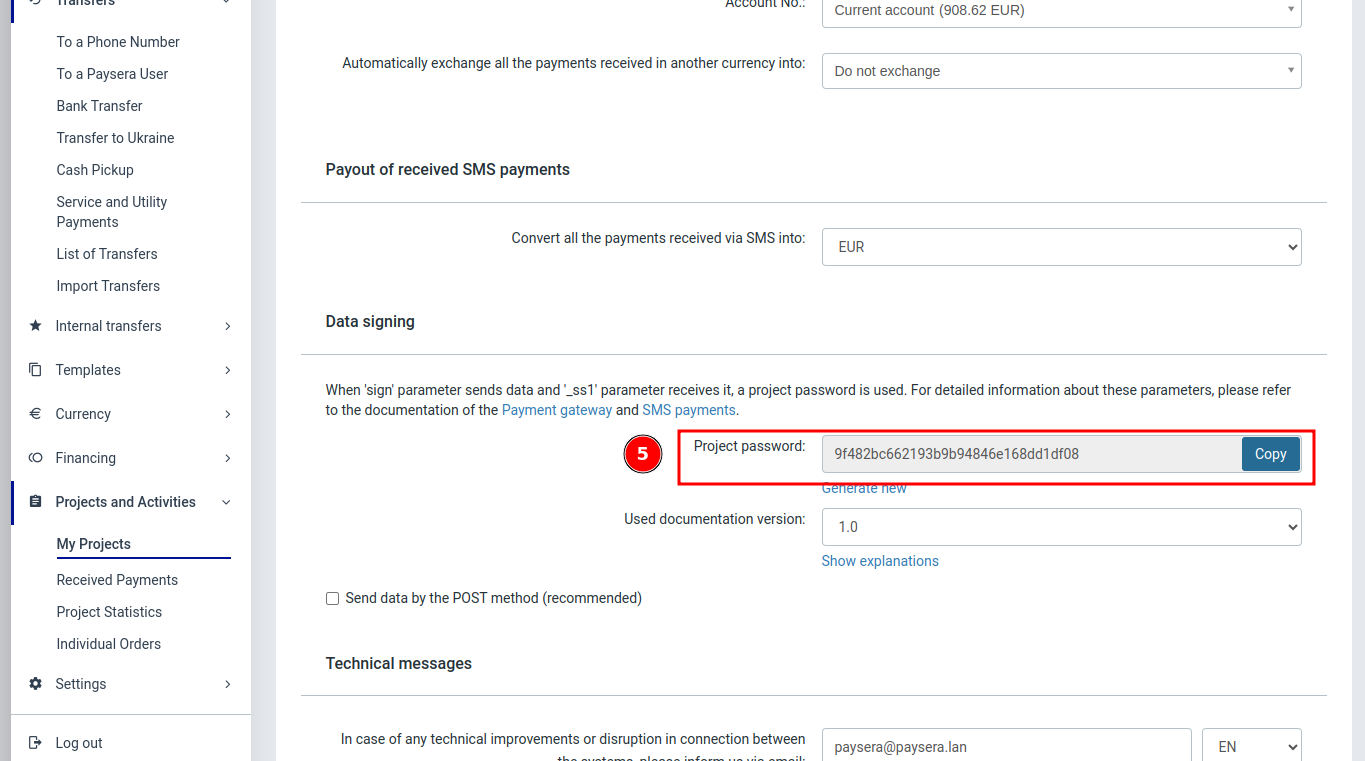
- Project Password - Go into your project settings and navigate to "General Project Settings" to find this
Next Steps
Select the integration guide based on your needs and proceed there to complete your implementation.