Obtaining Credentials
Learn how to get your API credentials from your Paysera Checkout project.
Before you can integrate with Paysera Checkout, you need API credentials. This guide explains how to get your Client ID and Client Secret.
Prerequisites
To obtain API credentials, you need:
- A Paysera merchant account
- A Paysera Checkout project
If you don't have a merchant account yet, sign up for Paysera Business.
Your Credentials
Paysera Checkout uses OAuth2 authentication. You'll need three pieces of information:
| Credential | Description | Example |
|---|---|---|
| Client ID | Unique identifier for your integration | 01990618-2c90-7103-9169-752bdaac7a52 |
| Client Secret | Secret key for authentication | abc123def456... (hidden after creation) |
| Project ID | Identifier for your project | 01990618-2c90-7103-9169-752bdaac7a52 |
Your Client Secret is shown only once when generated. Store it securely immediately. If you lose it, you'll need to regenerate credentials.
Getting Your Credentials
Step 1: Open Your Project in Paysera Checkout
- Sign in to Paysera Checkout in the Paysera Merchant Portal
- Select your project (or create a new one)
Step 2: Open the Integrations Page
From the project's left-hand navigation, click Integrations. The API credentials section shows your Client ID and Client Secret.
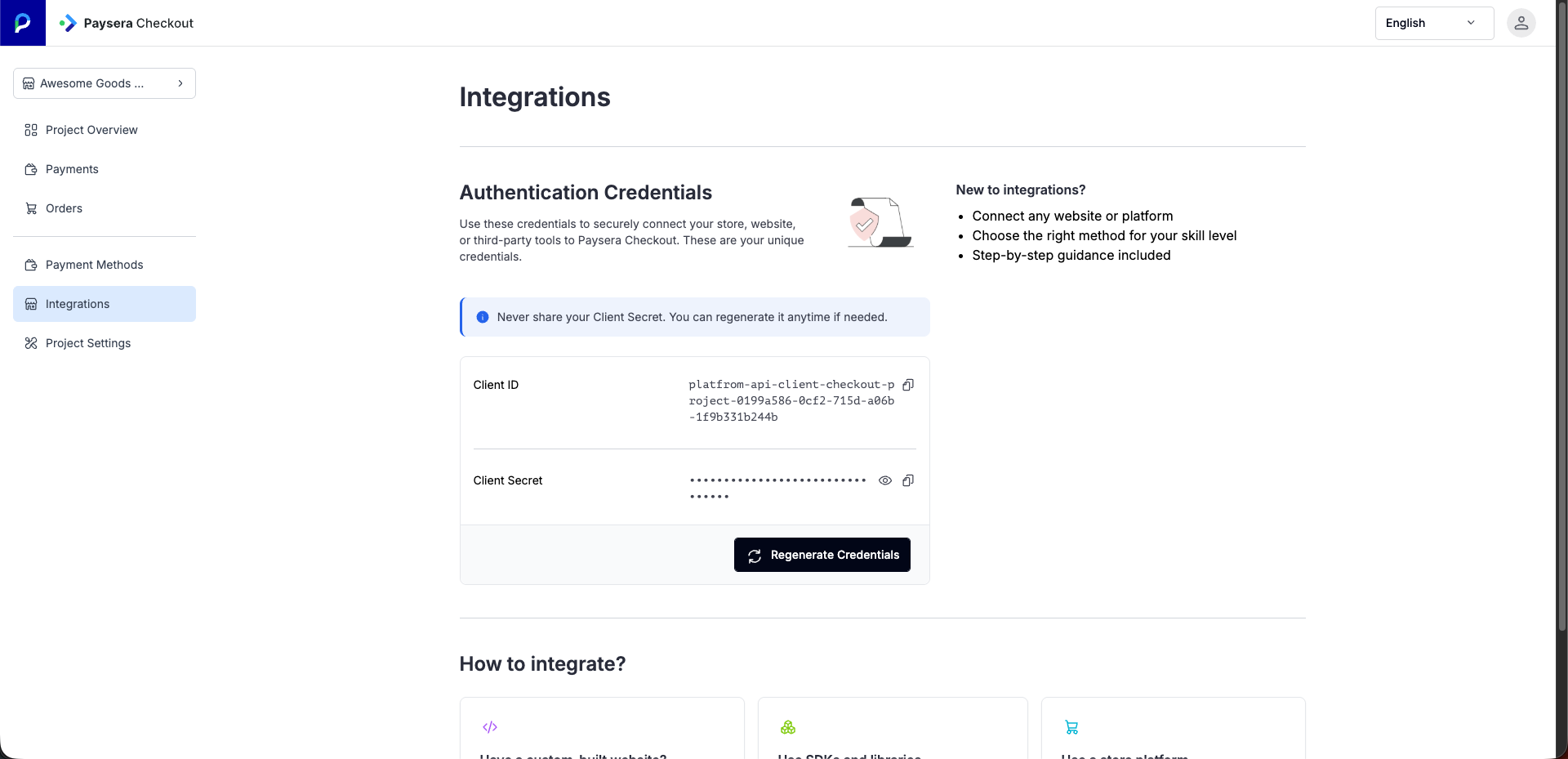
Find your API credentials in the Integrations page
Step 3: Copy Your Credentials
Your credentials are displayed in the API credentials section:
- Client ID — click the copy icon to copy the value
- Client Secret — click the eye icon to reveal the value, then copy it
- Project ID — your project's unique identifier (embedded in the Client ID after
project-)
Credential Scopes
Each set of credentials is scoped to a specific project. This means:
- Credentials can only access data for their associated project
- You need separate credentials for each project you want to integrate
- Each project has its own unique credentials
Regenerating Credentials
If your Client Secret is compromised or lost:
- Open the Integrations page in your project
- Click Regenerate credentials to create a new pair
- Update your integration with the new Client Secret immediately
Regenerating credentials invalidates the old secret immediately. Any integrations using the old credentials will stop working.
Credential Management
Access your credentials anytime at bank.paysera.com/shell/checkout.
Example: Storing Credentials
Environment Variables
# .env file (add to .gitignore!)
PAYSERA_CLIENT_ID=your-client-id
PAYSERA_CLIENT_SECRET=your-client-secret
PAYSERA_PROJECT_ID=your-project-id
Using in PHP
<?php

$clientId = getenv('PAYSERA_CLIENT_ID');
$clientSecret = getenv('PAYSERA_CLIENT_SECRET');
$projectId = getenv('PAYSERA_PROJECT_ID');
Using in Node.js
const clientId = process.env.PAYSERA_CLIENT_ID;
const clientSecret = process.env.PAYSERA_CLIENT_SECRET;
const projectId = process.env.PAYSERA_PROJECT_ID;
Next Steps
Once you have your credentials:
- Set up authentication - Learn how to get access tokens
- Environment setup - Configure API endpoints
- Create your first payment - Process a test payment
Troubleshooting
"Invalid client credentials" Error
- Verify you're using the correct Client ID and Secret pair
- Ensure credentials haven't been regenerated
Can't Find the Integrations Page
- Verify you have the necessary permissions on the project
- Contact your account administrator if the page is not visible in the project's left-hand navigation
Need Help?
If you're having trouble obtaining credentials, contact Paysera Support.